# Embedded card component
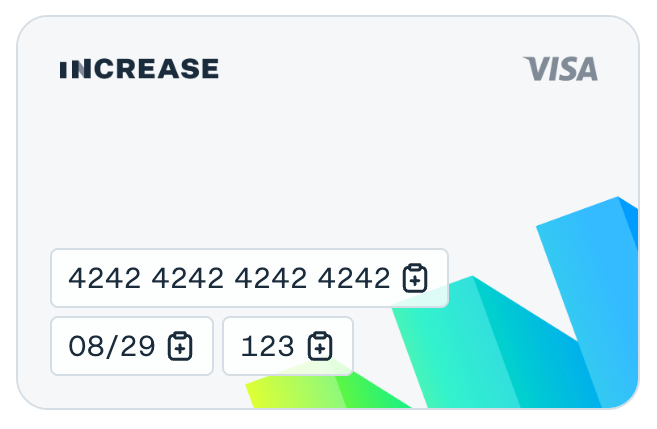
Increase offers an embeddable card component that can render a Card’s details within an `` component on your website. This can allow you to display sensitive information like the Card’s `primary_account_number` and `verification_code` without having the information ever pass through your systems.
Not accessing the Card's Primary Account Number is a good practice to help comply with the Payment Card Industry Data Security Standards (sometimes abbreviated as “PCI”).
## Usage
Start by getting the `iframe` URL. You’ll need the ID of the [Card](/documentation/api/cards#cards) you wish to render. The URL you generate will be accessible for one hour.
```curl
$ curl -X "POST" --url "https://api.increase.com/cards/${card_xx}/create_details_iframe" \
-H "Authorization: Bearer ${INCREASE_API_KEY}" \
-H "Content-Type: application/json"
```
```json
{
"iframe_url": "https://site.increase.com/card_details_iframe/index.html?token=abc123",
"expires_at": "2025-01-01T00:00:00.00Z"
}
```
Once you have an `iframe` URL, you can embed an `` in your UI:
```jsx
```
The above code will render something like this:
## Physical cards
By default, the embedded component will render your virtual card art. To render an image including your [Physical Card](/documentation/api/physical-cards#physical-cards) artwork instead, pass the Physical Card ID as a parameter when creating the `iframe` URL. The component will also include the chip and Visa logo.
```curl
curl -X "POST" --url "https://api.increase.com/cards/${card_XXX}/create_details_iframe" \
-H "Authorization: Bearer ${INCREASE_API_KEY}" \
-H "Content-Type: application/json" \
-d '{"physical_card_id": "${physical_card_XXX}"}'
```